MX Keys S Series — Day 5 | Tutorial
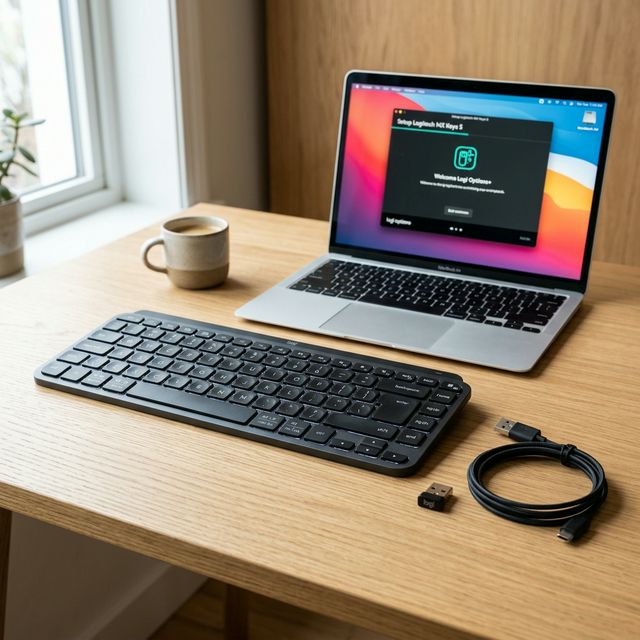
You just took your new Logitech MX Keys S out of the box. It feels surprisingly solid, the aluminum is cool to the touch, and you’re ready to make it the center of your workflow.
Setting up this keyboard is technically as simple as flipping the power switch and connecting via Bluetooth. But to actually get your money’s worth out of a premium productivity tool, there are a few steps you need to take in the first 30 minutes.
This guide walks you through the perfect initial setup, step by step.
Step 1: Power On and Choose Your Connection
Flip the keyboard over. On the top right edge, you’ll find the power switch. Flick it so the green indicator shows. The backlight will pulse briefly, and the small LED on the Easy-Switch 1 key will start blinking rapidly.
You have two ways to connect:
Option A: Bluetooth (Easiest for Laptops & iPads)
- Ensure the Easy-Switch 1 key is blinking. (If it isn’t, press and hold it for 3 seconds).
- Open the Bluetooth settings on your computer or tablet.
- Select “MX Keys S” from the list of available devices.
- Your screen will display a 6-digit pin code. Type this code on the MX Keys S and press Enter.
- You’re connected.
Option B: Logi BOLT Receiver (Best for Desktops & Crowded Offices)
In the box, you’ll find a small USB-A receiver with a green logo. This is the Logi BOLT receiver.
- Plug the Logi BOLT receiver into a secure USB-A port on your computer.
- The keyboard should connect instantly out of the box.
- Why use BOLT? It provides a more secure, lower-latency connection than Bluetooth, especially in offices with dozens of other wireless devices competing for signal.
Step 2: Install Logi Options+ (Do Not Skip This)
Your keyboard works right now. You can type, use the media keys, and go about your day. But without Logi Options+, you are essentially driving a sports car in second gear.
- Go to logitech.com/optionsplus.
- Download and install Logi Options+ for Windows or macOS.
- Open the app. It will automatically detect your MX Keys S.
The First 3 Things to Configure in Options+
Once the app is open and your keyboard is selected, adjust these immediately:
1. Backlight Behavior By default, the backlight is on and uses the proximity sensor. If you work in a bright room, turn the backlight duration down or off completely to extend your battery life from 10 days to 5 months.
2. Standard F-Keys or Media Keys? Decide how you want the top row (F1-F12) to behave.
- If you check the box for “Use F1, F2, F3, etc. keys as standard function keys”, pressing F5 refreshes a webpage. You’ll need to hold the
fnkey (bottom row) + F5 to use the media shortcut. - If you leave it unchecked, pressing F-keys triggers their media shortcuts (volume, brightness, etc.), and you hold
fnto get the standard F1-F12 actions.
3. OS Layout Toggle The MX Keys S has dual-printed keys (like opt | start and cmd | alt). It usually detects your OS automatically, but if you’re on a Mac and the Windows keys are triggering, press and hold fn + O for 3 seconds to force macOS mode, or fn + P for 3 seconds for Windows mode.
Step 3: Setup Easy-Switch for a Second Device
The genius of this keyboard is controlling multiple devices. Let’s set up your second machine (e.g., your tablet or a second laptop).
- Bring your second device to your desk.
- On the MX Keys S, press and hold the Easy-Switch 2 key for 3 seconds until the LED blinks rapidly.
- On your second device, open Bluetooth settings.
- Select “MX Keys S” and enter the provided pin code if prompted.
- Done.
Now, press Easy-Switch 1 to type on your main computer, and Easy-Switch 2 to type on your tablet. The switch takes roughly one second.
Step 4: App-Specific Customization (The Power Move)
This is where you make the keyboard yours.
- In Logi Options+, click on your MX Keys S, then click Keys.
- In the top right corner, click “Add Application”.
- Select an app you use constantly (e.g., Zoom, Slack, Chrome, or VS Code).
- Now, select the Dictation Key (F5) or the Emoji Key (F6).
- Change their function specifically for that app.
Examples:
- In Zoom: Change F5 to “Mute/Unmute Audio” and F6 to “Start/Stop Video”.
- In Chrome: Change F5 to “New Tab” and F6 to “Close Tab”.
- In Excel: Change F5 to “Insert Row” and F6 to “Delete Row”.
When you switch active windows, the keyboard instantly remaps those keys.
Step 5: Charge It Now
Your MX Keys S likely came with about a 50% charge out of the box. Take the included USB-C cable and plug it in right now while you work.
It takes about 3 hours to reach 100%. Once full, if you keep the backlight off, you won’t need that cable again until autumn.
You’re Good to Go
That’s it. Your MX Keys S is connected, customized, and ready for work. Take a few minutes to get used to the concave keycaps and the short travel distance. By tomorrow morning, you’ll be typing faster than you were on your old board.
Disclosure: Links in this article are Amazon Affiliate links. I may earn a small commission if you purchase through them — at no extra cost to you. All opinions are my own.